
Quick note on the name — "SOUI" isn't officially short for anything. The creator says it's a pun — "瘦UI" (skinny UI), "UI, just so so!" — not a real acronym. Blog posts that expand it to "Simple Object User Interface" (and disagree with each other) are guessing. Don't trust those expansions.
Here's the odd part: the exact same click, on the exact same window, works fine when you send it directly — but shows up as nothing when you try to record it. Cursor moves, click lands, app responds. Try to capture that same click in a recording, and you get nothing usable. Same app, same click, same moment. One way works. One doesn't.
That's not a glitch in the tooling. It's exactly what you'd expect once you know that "clicking" and "recognizing what you clicked" run on two completely different systems — and that gap describes a whole category of apps that trip up most recording-based automation tools.
01 Why this happens
SOUI is a style of app-building where the whole window is basically hand-painted. When a developer builds an app this way, Windows only ever creates one real window for the whole app. Every button, list, and panel you see inside it is fake, in the sense that Windows itself doesn't know they exist — they're just shapes the app draws on its own canvas. As far as the operating system is concerned, there's one window and a bunch of pixels. No individual buttons registered anywhere.
That one fact explains everything that follows.
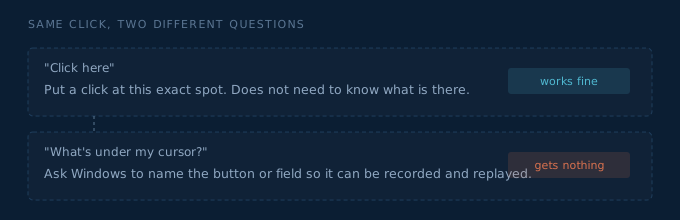
Clicking is a simple instruction: put a click at this exact spot on the screen. Windows doesn't need to know what's drawn there — it just hands the click to the one real window, and the app figures out internally what to do with it. Nothing about this needs Windows to understand what a "button" is. It works blind, and it works every time.
Recording asks a completely different question: what did the person just click on? To answer that, the recorder has to ask Windows to name the thing under the cursor — its label, its role, what kind of control it is. SOUI apps never register any of that information with Windows in the first place. So the question isn't answered wrong — it's answered with silence, because there was nothing to ask about.
In one sentence — clicking just needs an address to send to. Recording needs a name to look up. SOUI gives you the address but keeps the name book locked.
02 Why a "smarter recorder" isn't the answer
The obvious fix is to make the recorder smarter — have it read text off the screen, match button shapes, compare screenshots frame by frame, anything to fake its way to an answer without asking Windows. That can work, but it's aiming at the wrong problem. It's slow, and it breaks the moment the app's colors, size, or layout change even slightly. More importantly, it's still trying to guess what a person meant by watching them — and the guessing was never really the hard part. Not having anything to watch is.
Recording exists for one reason: so a person doesn't have to know how to write code to teach a machine a task. It's a translation step — from "a person knows how to do this" into "a script that can repeat it." That translation is only needed when a person is the one who knows the steps, and a machine has to pick it up by watching.
But if the steps can just be described in plain language instead — and then checked by looking at a screenshot to confirm it worked — you don't need a smarter recorder. You don't need a recorder at all. There's nothing to learn by watching, because nobody has to watch. The script gets written directly, not guessed at. That is also how Automation Skill Builder approaches this class of app: describe the task, solidify a deterministic skill, verify with the screen.
03 This is really a third kind of app, not a broken case
So instead of treating SOUI as "a recording bug to patch around," it makes more sense to treat it as its own category with its own natural approach. In practice, there are three kinds of apps to deal with:
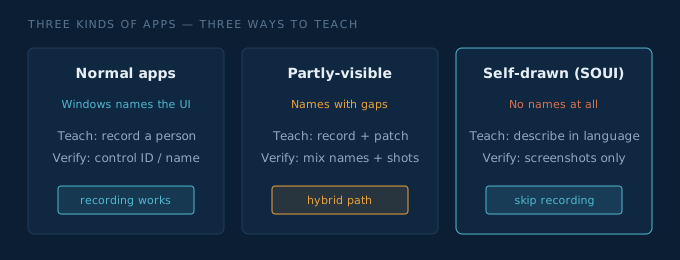
| Kind of app | Can Windows name the buttons? | How to teach it a task | How to check it worked |
|---|---|---|---|
| Normal apps | Yes, fully | Record a person doing it | Match the button's ID/name |
| Partly-visible apps(some enterprise Java apps, etc.) | Partly, with gaps | Record it, then patch the gaps by hand | Mix of button names + screenshots |
| Self-drawn apps(SOUI, DuiLib, similar) | No, nothing | Describe it in plain language, skip recording | Screenshot comparison only |
The "just describe it in words" approach — where one side explains the task in plain language and the other side turns it straight into a click-by-click script, using screenshots to confirm each step — isn't a patch bolted onto the normal process. For this whole category of app, it's simply the right way to do it, and it should kick in automatically, not only when someone happens to think of it.
What this means going forward
- Spot this type of app early: before offering to record, do a quick check of whether Windows can actually name anything inside the window. If it comes back empty, that's the tell.
- For these apps, skip straight to "describe it in language" instead of trying to record first and only falling back later — there's nothing for recording to succeed at here, so trying it first just wastes time.
- For these apps, use screenshots to confirm each step worked, instead of checking button names — it's the only signal actually available.
- Watch out for the screen changing — different resolution, different zoom level, a different color theme. Since everything is based on exact screen position, this is the main way these scripts break, so it's worth extra effort to catch and fix automatically.
When an app won't tell you what's inside it, don't make a person demonstrate something a machine can't perceive anyway. Just describe the task in plain language and let it write the script directly — then double-check the result the one way both sides can agree on: looking at the screen.
Try it on a self-drawn desktop flow
Automation Skill Builder is free to start. Describe the task in language, solidify a deterministic skill, and verify with the screen — including apps that recording cannot see into.
Download for Windows Spec-Driven throughline